
 Home — Continuous Improvement Tools
Process Improvement Tools.
Standard Work.
Work Instructions.
Flow Chart templates.
Swim Lane Cross Functional Flowchart.
Value Stream Mapping.
Lean tools.
Time Study templates.
DMAIC tools.
Quality Improvement tools.
House of Quality QFD.
FMEA Risk Reduction.
Root Cause Analysis tools.
Problem Solving tools.
OEE.
Preventive Maintenance.
Skip to main content


Installation and Setup
Installation - Each User. Installation - Multi-user. Language Translations. Personalize Your Templates.Systems2win Training.
Quick Start Initial Training. New User Training. Training Matrix. Systems2win Leadership. Training Classes.Lean Training
Lean Training and Coaching. Lean Principles. Muda 8 Wastes. Goal - Lean Flow. Roadmap - Lean Journey. Value Stream Mapping. Standard Work. Hansei Lean Thinking. Lean Dictionary. Online Lean Training. Lean Leadership.Microsoft Office Training
Excel Training. Excel Drawings (without Visio). Excel Charts. Word Training. PDF Training. Document Storage and Naming.Support
Support.Damaged Document
How to recover from a damaged document
What happened?
If you see the 'Welcome' sheet, then one of the following things happened:
- The 'Help' sheet was deleted
It is okay to Hide or rename the 'Help' sheet, but it cannot be deleted.
- The 'Template' sheet was deleted or renamed
The (hidden) 'Template' sheet cannot be renamed or deleted.
How to recover your document
Open a copy of the master template from which your document was created.
You learned how to find and open your templates in the Quick Start Training.
Copy the missing or damaged sheet from the master to your document.
As you learned in the New User Training...
always use the special Systems2win utility to copy worksheets
System2win menu > Copy Sheet
If you know which sheet was damaged, just copy that one sheet.
If not sure, then copy both the Help and Template sheet.
The 'Template' sheet is normally hidden,
(in order to prevent people from accidentally renaming or deleting it... )
so you will probably need to unhide it in order to make it visible to copy.
Then after you have restored the damaged or missing sheet...
with the 'Welcome' sheet open in the damaged workbook...
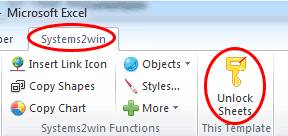
in the Systems2win menu, select..
Unlock Sheets
This will unhide the hidden sheets in your workbook,
and will (correctly) hide the 'Template' sheet,
which is intended to remain hidden
(in order to prevent people from accidentally renaming or deleting it...
so that you don't have to do this document recovery again...)
