
To view this newsletter in different languages — see the web page version
The End of Macros |
 |
|
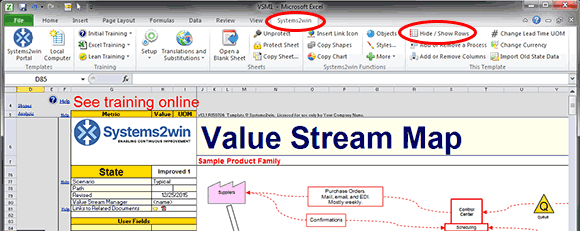
No more need to enable macrosOn the 4th of July, we released version 13, and the centerpiece of that new version All macro buttons have been replaced by menu items that appear in your Systems2win menu when needed.
Not only does this remove another small stumbling block from the learning curve for new users... it is also simply more convenient, For example there is no need to re-locate the 'Hide / Show Rows' button on the Value Stream Map after you expand or collapse rows, because the new menu item is always easily found in the Ribbon menu. (see image at the top of this page) Other benefits
Eliminating workbook macros is one more small step in our never-ending quest to maintain that ideal balance between powerful functionality and simple ease of use as we continue our mission...
|
|
Existing customers get all the latest templates each time you upgrade. Although most customers choose to renew annual maintenance once a year - you have the option to upgrade your templates at any time.
See What's New
|
|
Introduction to Systems2win templates July 29, 3pm Central Time August 12, 10am Central Time Learn how to get off to a quick start New User Hands On Learning July 29, 9am Central Time In depth training, and hands-on learning exercises for new users
All times are Central Time from Nashville Tennessee, (which is the same as Chicago)
Or perhaps request a private consultation
|
|
Try a dozen trial templates You can download the latest trials any time. If your trial period has expired, you can
Try all 150+ templates In addition to the dozen free trial templates,
|







|
Supply Chain MapAs part of the version 13 upgrade, the stand-alone Supply Chain Map template has been discontinued, and supply chain mapping features have been added to the standard Value Stream Mapping template.
As explained on our Supply Chain Mapping training page, the puzzles that you are trying to solve to optimize your supply chain are different from the puzzles that you are trying to solve to optimize the value streams within your own organizational control. Much of the math, symbols, and charts are the same, which is why it made sense to combine them into a single template, (which now endows the Supply Chain Map with advanced features like the ability to instantly change all currency cells to your chosen currency, the new improved operation load balancing, the new visual lead time chart...) and yet supply chain analysis requires several different charts and algorithms that make no sense for a traditional value stream (Demand Screen, Quality Screen, Demand Amplification...) The greatly improved Hide / Show Rows capabilities (that allow you to hide or show different levels of details for your different target audiences) were the technological breakthrough that allowed us to combine what had been two templates into one... It is now drop-dead easy to simply hide the supply chain mapping features and charts for most of your traditional value stream maps, and simply unhide those powerful capabilities whenever your teams mature to the (much more advanced) phases of your lean journey when you are ready to begin involving your supply chain partners into your own continuous improvement vortex.
|
||
|
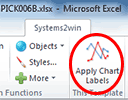
Reset FilterEven experienced Excel users often can't correctly answer the question: "What is an Excel 'list', that is so essential to understand before using Excel's Filter, Sort, and PivotTable features?" So about ten years ago, we provided our users with a training video to walk them through how to use the special named range that is found in every Systems2win template that might benefit from Excel's 'Filter' features — to mistake-proof the selection of the correct rows and columns needed to use Filter, Sort, and PivotTables correctly. And we added the special Systems2win function to 'Reset Thin Gold Lines' — to correctly bound formula ranges, and to clearly define range areas, and to ensure that there is always a column that contains data in every row (a requirement of using 'Sort' correctly)
Taking things one step further... to make this confusing Excel function even easier. If you click this button when 'Filter' is not yet applied... it will correctly apply 'Filter' to the correctly-selected range of cells for THAT template. If you click the same button when 'Filter' has already been applied... it will reset it... eliminating any Filters that you had previously applied (which can be difficult to notice, and unapply). Filter is one of the most useful (and most used) features of Microsoft ExcelIt is also one of the most confusing (and misused) features of Microsoft Excel. These special Systems2win features help you squeeze more juice out of your process improvement templates,
|




You are receiving this newsletter either because you are a customer,
or because you subscribed when you visited
Systems2win.com.
In compliance with CAN-SPAM, we will immediately honor any request to unsubscribe.